> ## Documentation Index
> Fetch the complete documentation index at: https://docs.omocaptcha.com/llms.txt
> Use this file to discover all available pages before exploring further.
# Set API KEY cho extension
> Cấu hình API Key cho extension OMOCaptcha
Sau khi đã cài extension vào trình duyệt (xem [Cài extension từ file zip](/vi/huong-dan/cai-extension-tu-file-zip)), bạn có **3 cách** để thiết lập API Key cho extension:
Nhập trực tiếp vào extension
Chỉnh sửa file `configs.json`
Dùng URL trên trình duyệt
## Cách 1. Nhập trực tiếp vào extension
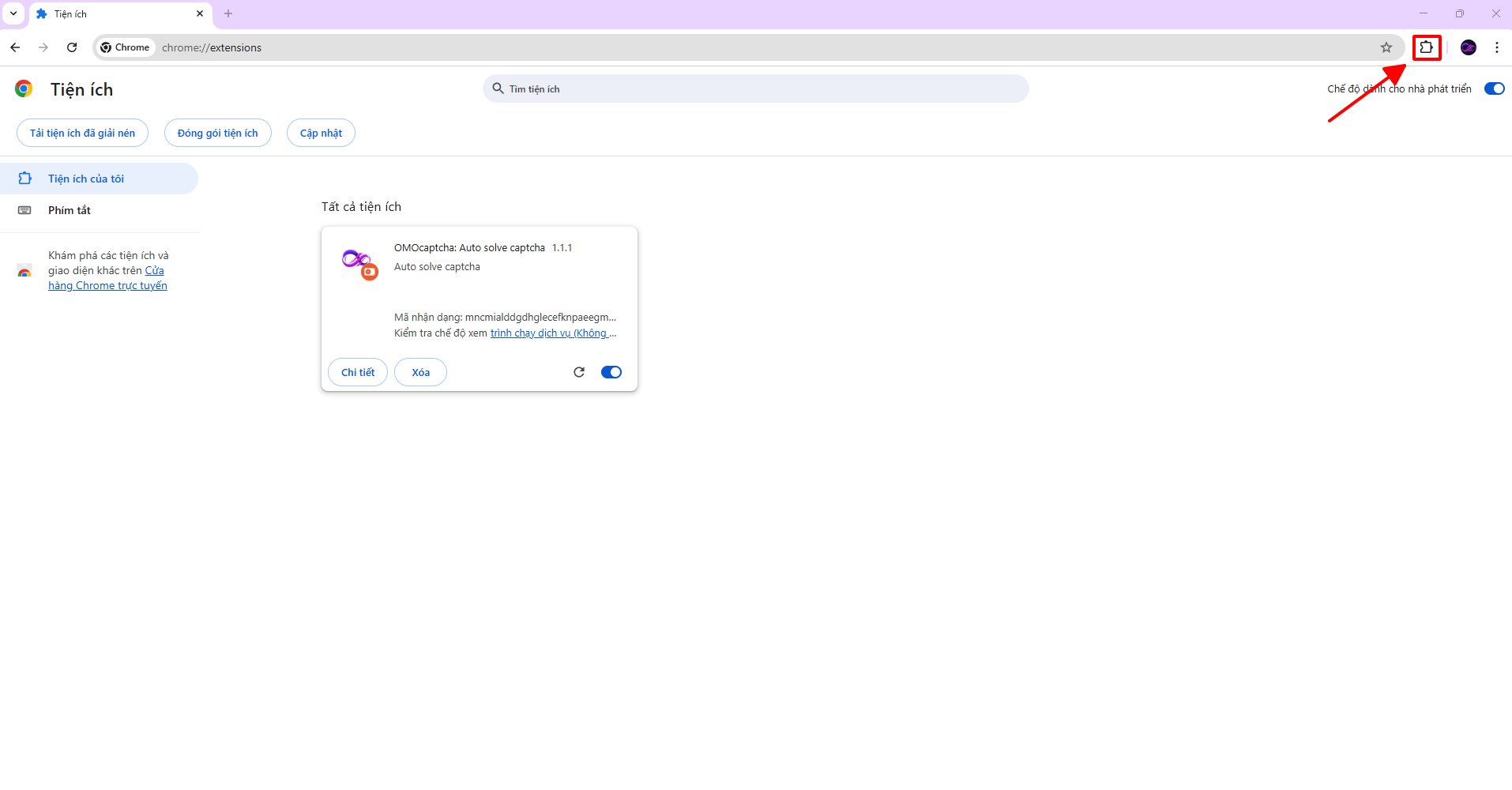
Sau khi cài extension, bạn nhấp vào biểu tượng **tiện ích (extension icon)** trên thanh công cụ của trình duyệt để mở popup của extension.
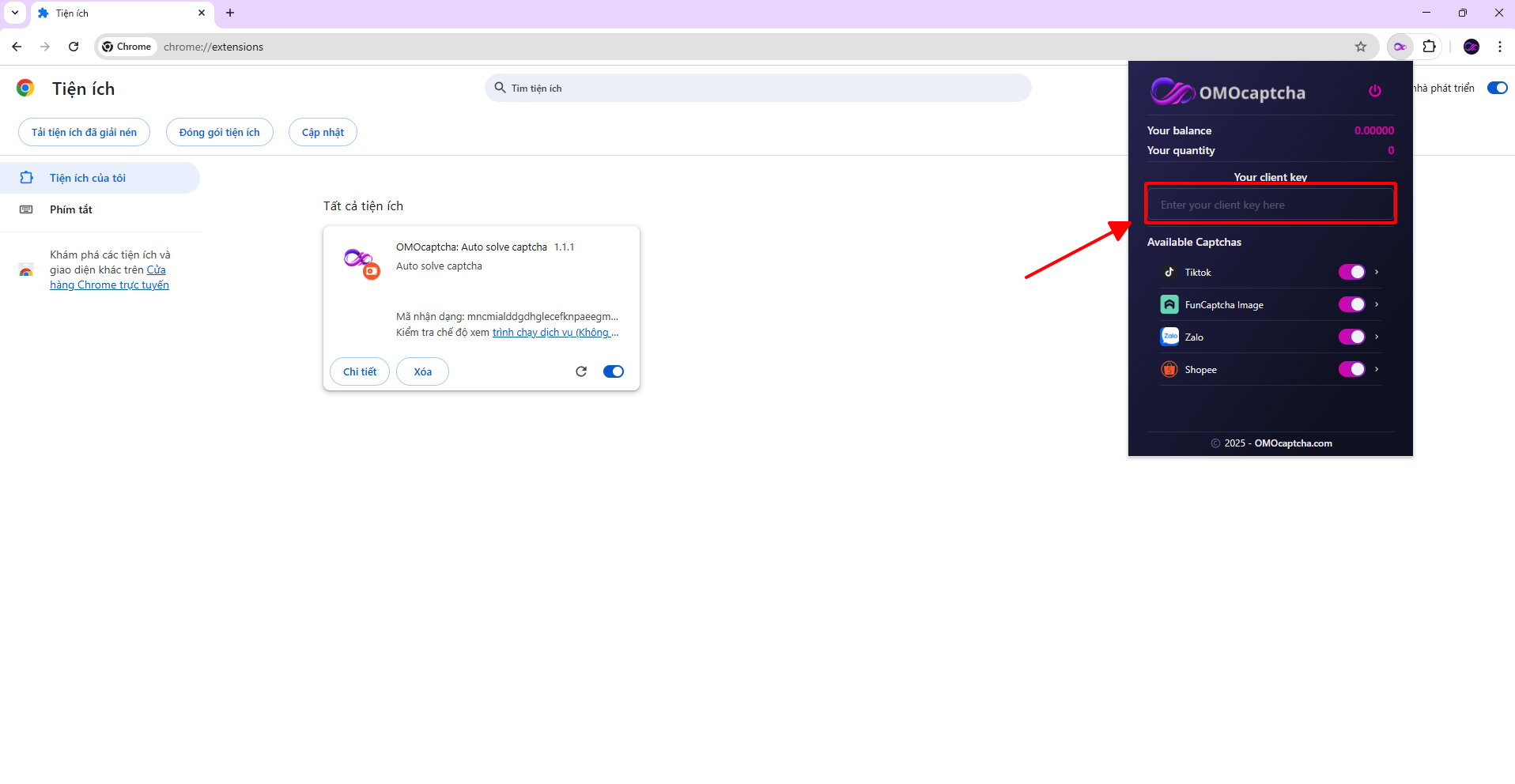
 Trong popup vừa mở, hãy dán **API Key** của bạn vào ô **Your client key** rồi bấm ra ngoài để lưu.
 Nếu chưa có API Key, hãy đăng nhập tại [omocaptcha.com](https://omocaptcha.com) và lấy API Key trong mục quản lý tài khoản.
## Cách 2. Nhập trực tiếp vào file trong extension
Bấm vào [đây](https://drive.google.com/drive/folders/1) để đến thư mục chứa các extension. Mật khẩu giải nén là `12345`.
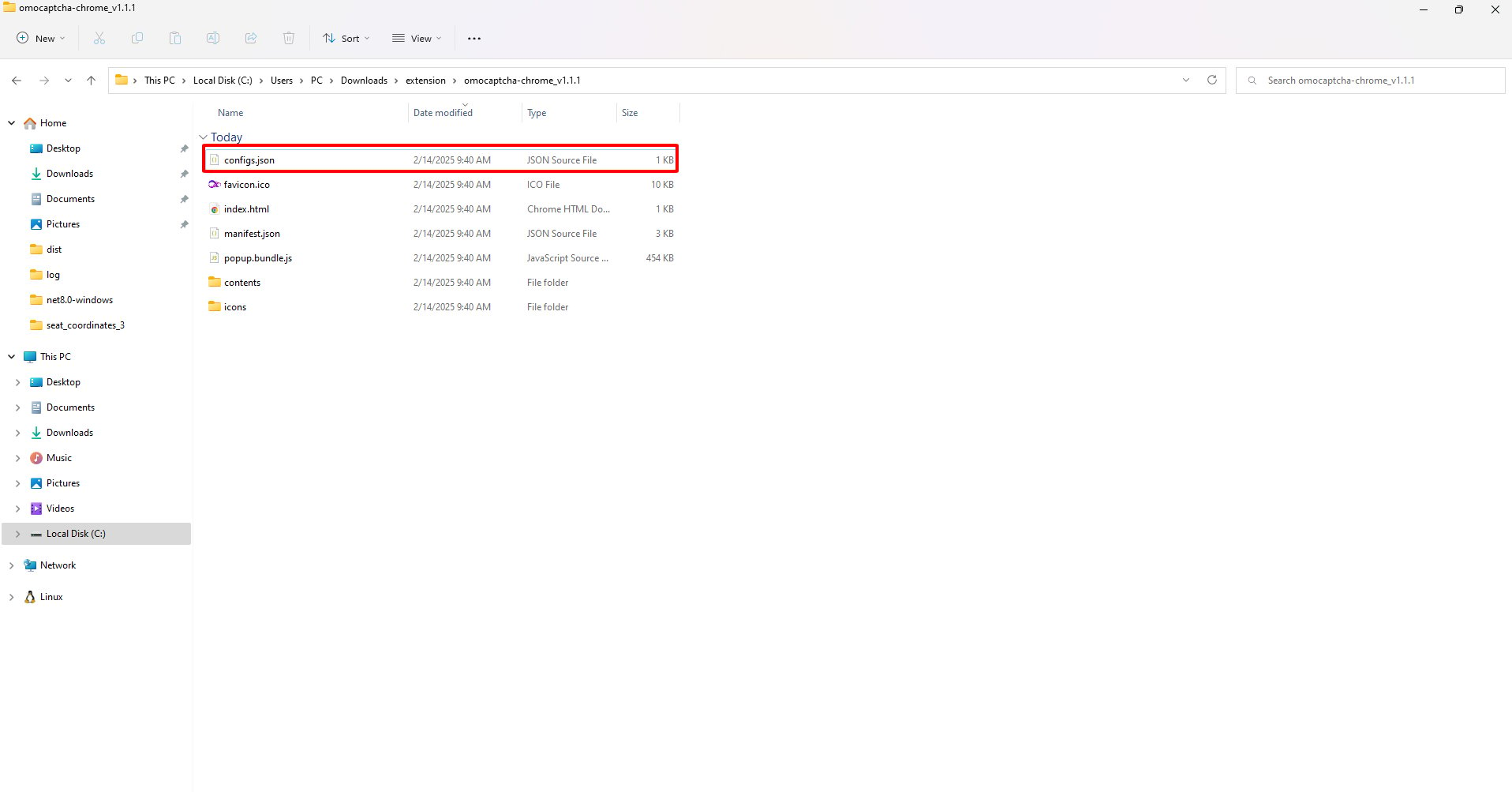
Sau khi tải về và giải nén, ta tìm đến file **`configs.json`** trong thư mục extension.
Nếu chưa có API Key, hãy đăng nhập tại [omocaptcha.com](https://omocaptcha.com) và lấy API Key trong mục quản lý tài khoản.
## Cách 2. Nhập trực tiếp vào file trong extension
Bấm vào [đây](https://drive.google.com/drive/folders/1) để đến thư mục chứa các extension. Mật khẩu giải nén là `12345`.
Sau khi tải về và giải nén, ta tìm đến file **`configs.json`** trong thư mục extension.
 Mở file lên bằng trình soạn thảo văn bản trên máy tính (Notepad, VS Code, Sublime Text…) và tìm tới dòng có văn bản **`YOUR_CLIEN_KEY`**. Thay API Key của bạn vào đó rồi lưu file lại.
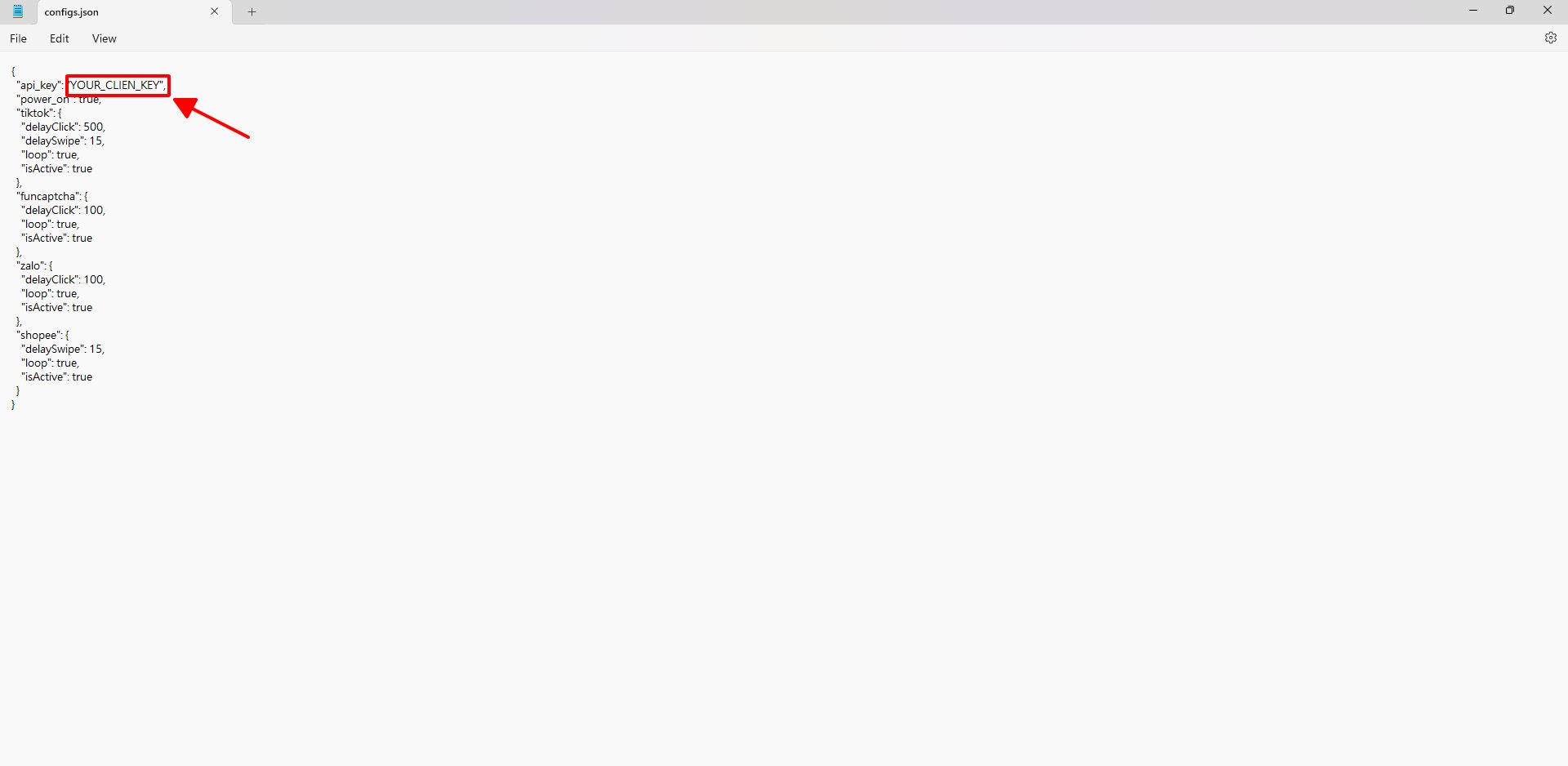 Ví dụ trước khi sửa:
```json configs.json theme={null}
{
"api_key": "YOUR_CLIEN_KEY",
"power_on": true,
...
}
```
Sau khi sửa:
```json configs.json theme={null}
{
"api_key": "abc123-your-real-api-key-xyz",
"power_on": true,
...
}
```
Sau khi sửa file `configs.json`, hãy vào `chrome://extensions/` và nhấn nút **tải lại (reload)** ở extension OMOCaptcha để áp dụng thay đổi.
## Cách 3. Nhập qua URL trên trình duyệt
Sau khi cài extension vào trình duyệt, bạn chỉ cần truy cập URL với định dạng như sau — extension sẽ **tự động** nhận và lưu API Key:
```text theme={null}
https://omocaptcha.com/set-key?api_key=YOUR_API_KEY
```
Thay `YOUR_API_KEY` bằng API Key thật của bạn rồi dán vào thanh địa chỉ của trình duyệt.
Ví dụ trước khi sửa:
```json configs.json theme={null}
{
"api_key": "YOUR_CLIEN_KEY",
"power_on": true,
...
}
```
Sau khi sửa:
```json configs.json theme={null}
{
"api_key": "abc123-your-real-api-key-xyz",
"power_on": true,
...
}
```
Sau khi sửa file `configs.json`, hãy vào `chrome://extensions/` và nhấn nút **tải lại (reload)** ở extension OMOCaptcha để áp dụng thay đổi.
## Cách 3. Nhập qua URL trên trình duyệt
Sau khi cài extension vào trình duyệt, bạn chỉ cần truy cập URL với định dạng như sau — extension sẽ **tự động** nhận và lưu API Key:
```text theme={null}
https://omocaptcha.com/set-key?api_key=YOUR_API_KEY
```
Thay `YOUR_API_KEY` bằng API Key thật của bạn rồi dán vào thanh địa chỉ của trình duyệt.
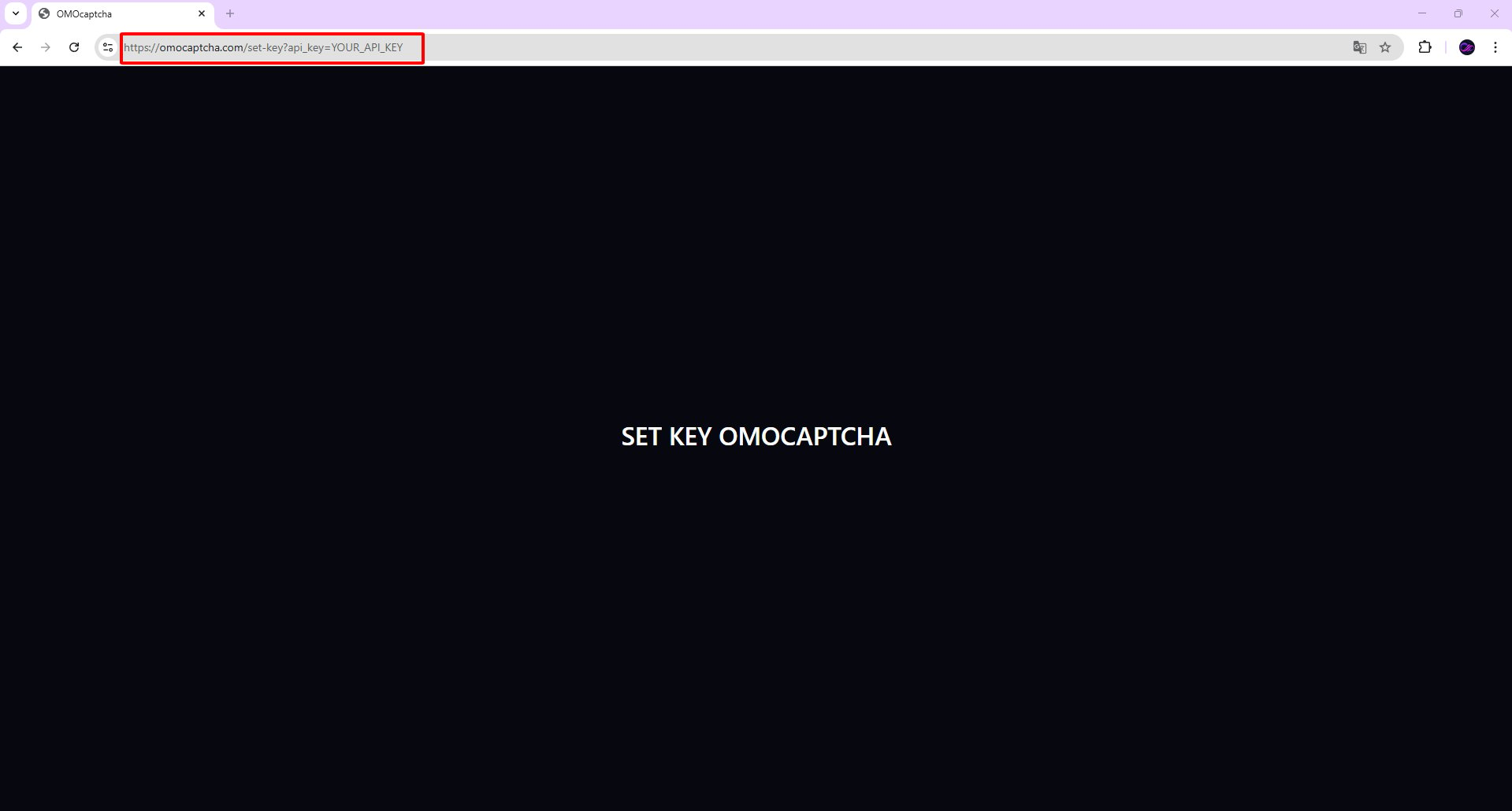 Khi trang hiển thị **SET KEY OMOCAPTCHA** là bạn đã thiết lập thành công.
Không chia sẻ API Key của bạn cho người khác. Nếu bị lộ, hãy tạo lại API Key mới trong trang quản lý tài khoản.
Khi trang hiển thị **SET KEY OMOCAPTCHA** là bạn đã thiết lập thành công.
Không chia sẻ API Key của bạn cho người khác. Nếu bị lộ, hãy tạo lại API Key mới trong trang quản lý tài khoản.