> ## Documentation Index
> Fetch the complete documentation index at: https://docs.omocaptcha.com/llms.txt
> Use this file to discover all available pages before exploring further.
# Set API Key for the extension
> Configure your API Key in the OMOCaptcha extension
Once you have installed the extension (see [Install extension from zip](/en/guides/install-extension-from-zip)), you have **3 ways** to set the API Key:
Enter directly in the extension popup
Edit the `configs.json` file
Use a URL in the browser
## Way 1. Enter directly in the extension
After installing the extension, click the **extension icon** in your browser toolbar to open the popup.
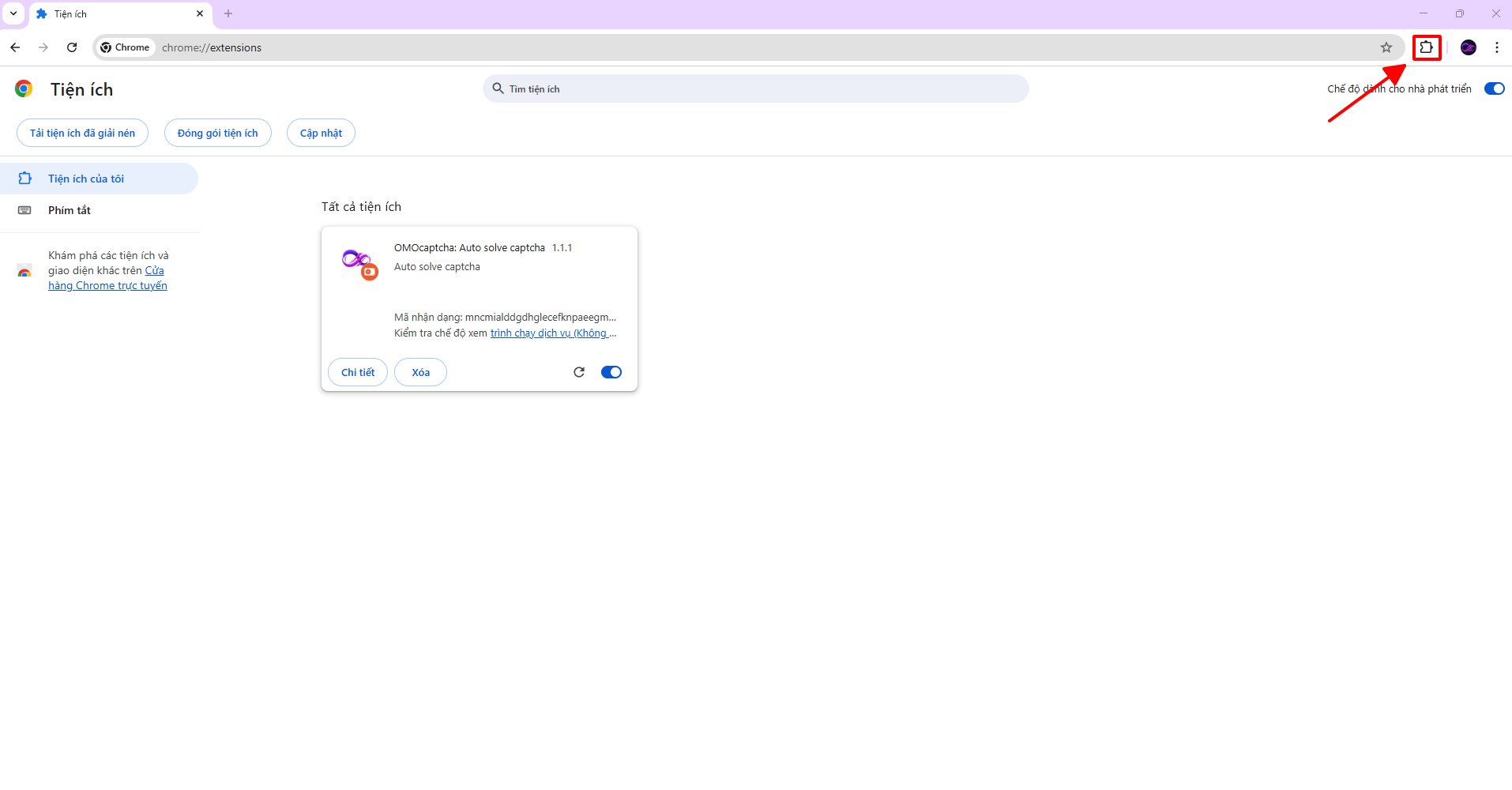 In the popup, paste your **API Key** into the **Your client key** field, then click outside to save.
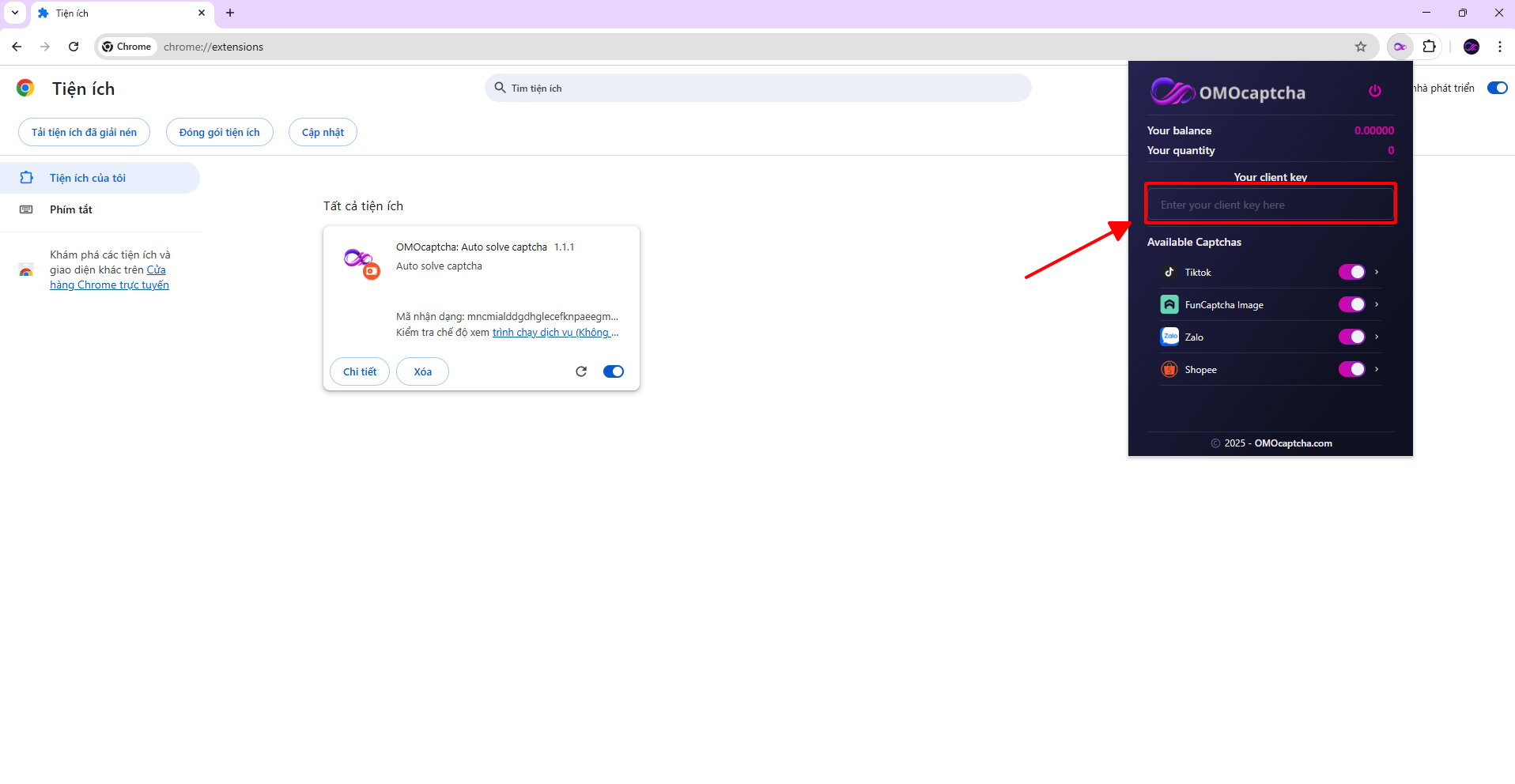 If you don't have an API Key yet, sign in at [omocaptcha.com](https://omocaptcha.com) and grab it from your account page.
## Way 2. Enter directly in a file inside the extension
Click [here](https://drive.google.com/drive/folders/1) to open the folder containing the extensions. The extract password is `12345`.
After downloading and extracting, locate the **`configs.json`** file inside the extension folder.
If you don't have an API Key yet, sign in at [omocaptcha.com](https://omocaptcha.com) and grab it from your account page.
## Way 2. Enter directly in a file inside the extension
Click [here](https://drive.google.com/drive/folders/1) to open the folder containing the extensions. The extract password is `12345`.
After downloading and extracting, locate the **`configs.json`** file inside the extension folder.
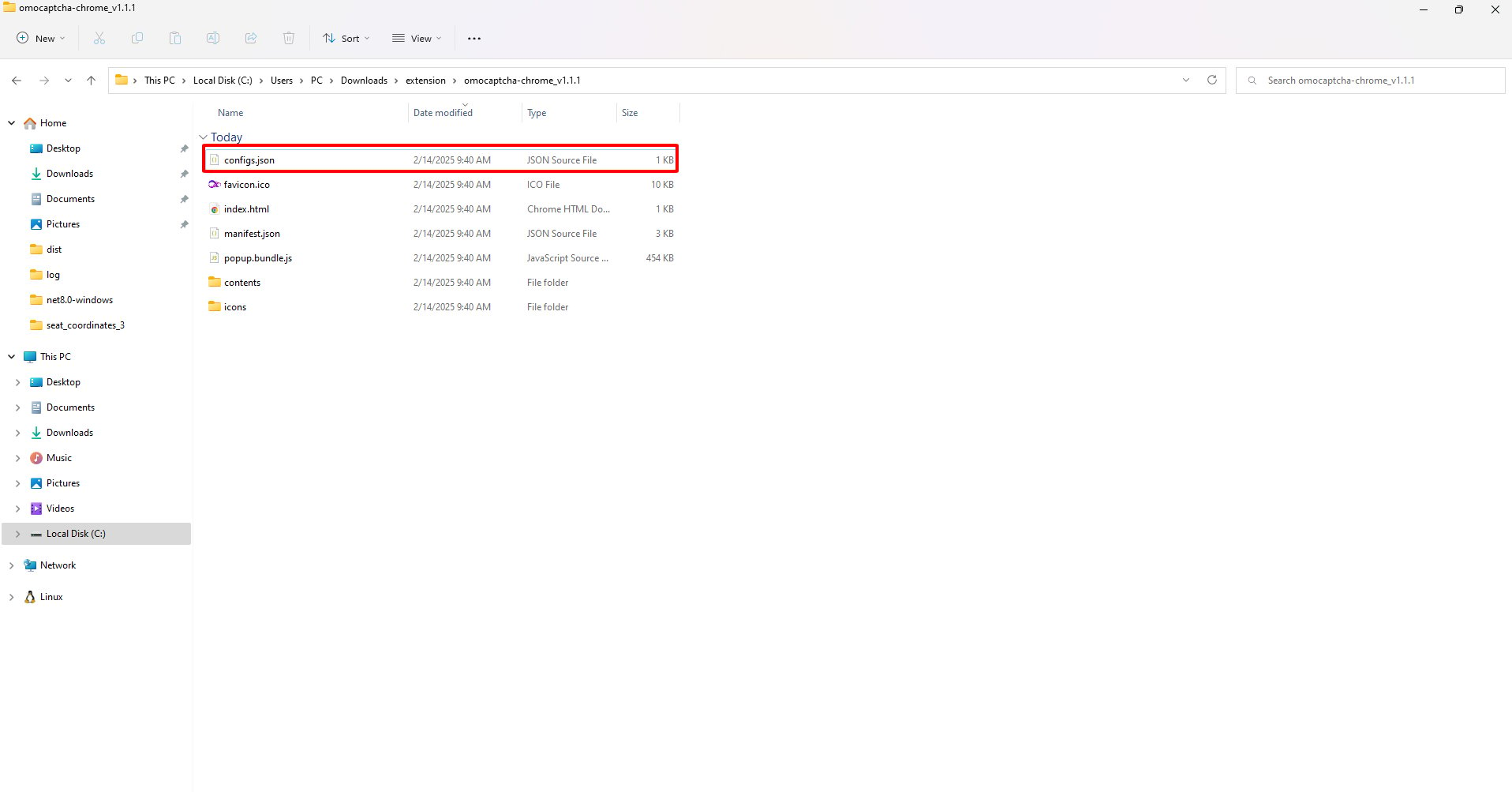 Open the file with any text editor (Notepad, VS Code, Sublime Text…) and find the line containing **`YOUR_CLIEN_KEY`**. Replace it with your real API Key and save the file.
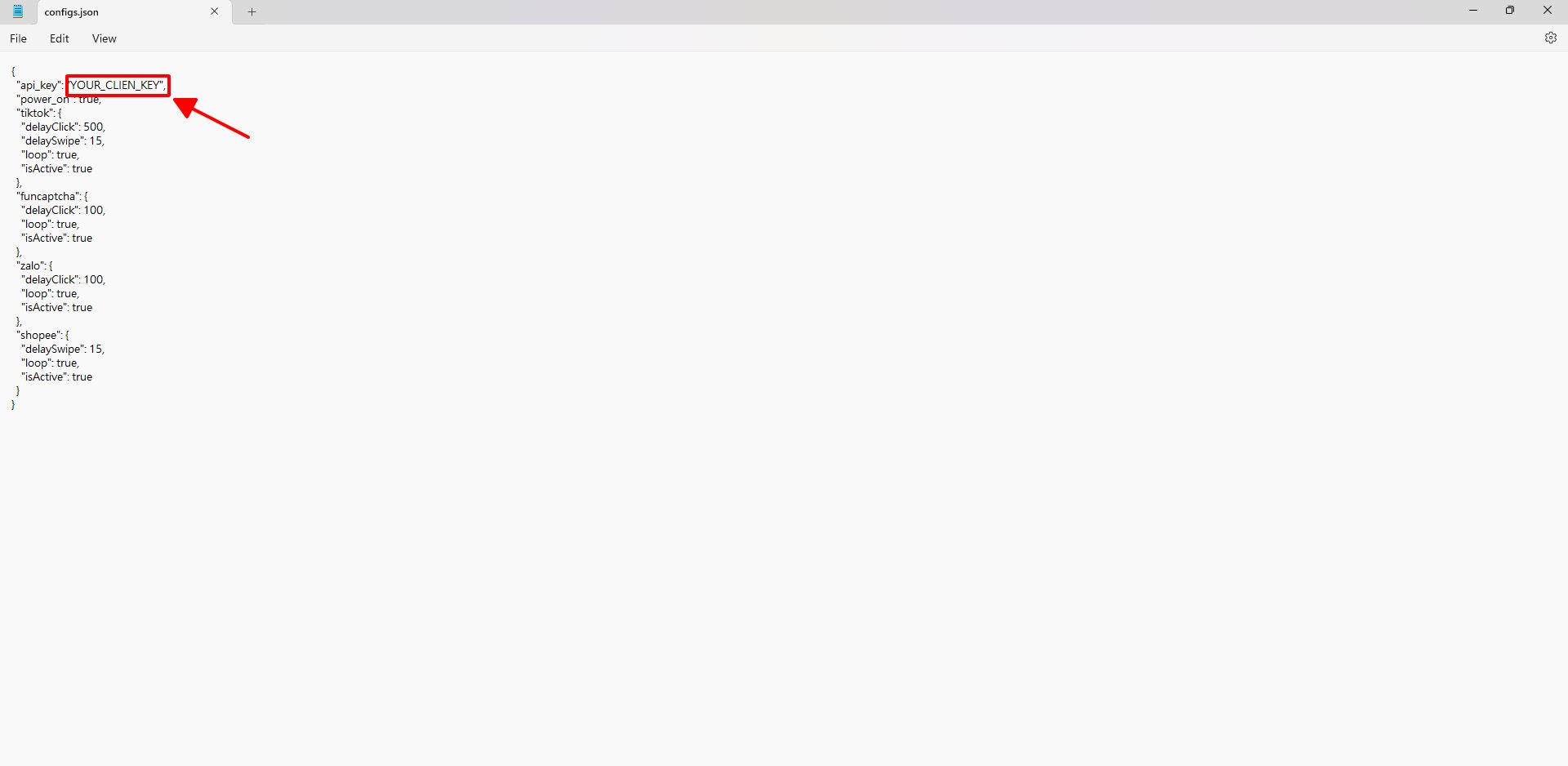 Example before:
```json configs.json theme={null}
{
"api_key": "YOUR_CLIEN_KEY",
"power_on": true,
...
}
```
After:
```json configs.json theme={null}
{
"api_key": "abc123-your-real-api-key-xyz",
"power_on": true,
...
}
```
After editing `configs.json`, open `chrome://extensions/` and click the **reload** button on the OMOCaptcha extension so the change takes effect.
## Way 3. Set via URL in the browser
Once the extension is installed, simply visit the following URL — the extension will **automatically** capture and save the API Key:
```text theme={null}
https://omocaptcha.com/set-key?api_key=YOUR_API_KEY
```
Replace `YOUR_API_KEY` with your real API Key and paste it into the browser's address bar.
Example before:
```json configs.json theme={null}
{
"api_key": "YOUR_CLIEN_KEY",
"power_on": true,
...
}
```
After:
```json configs.json theme={null}
{
"api_key": "abc123-your-real-api-key-xyz",
"power_on": true,
...
}
```
After editing `configs.json`, open `chrome://extensions/` and click the **reload** button on the OMOCaptcha extension so the change takes effect.
## Way 3. Set via URL in the browser
Once the extension is installed, simply visit the following URL — the extension will **automatically** capture and save the API Key:
```text theme={null}
https://omocaptcha.com/set-key?api_key=YOUR_API_KEY
```
Replace `YOUR_API_KEY` with your real API Key and paste it into the browser's address bar.
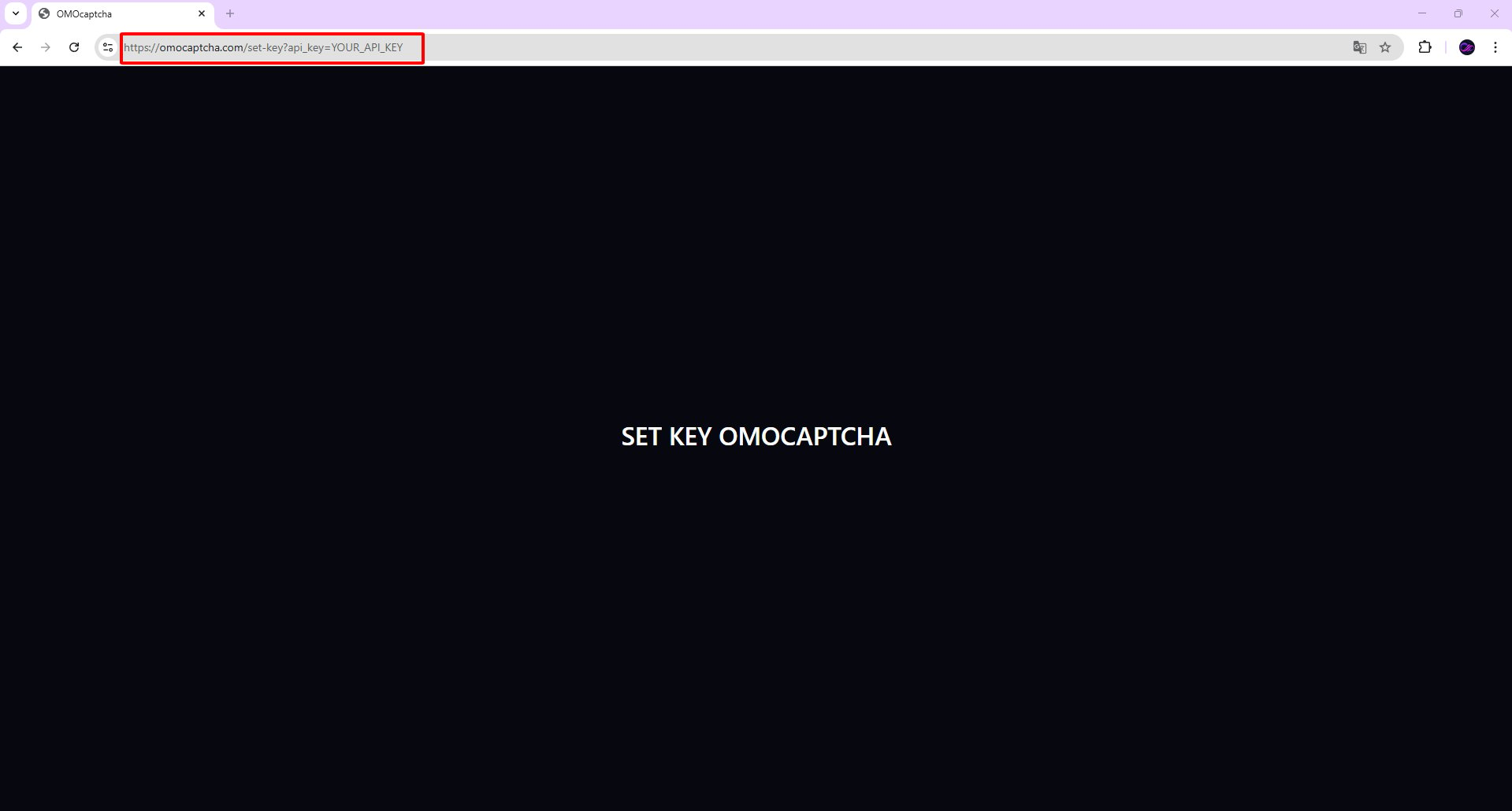 When the page shows **SET KEY OMOCAPTCHA**, the key has been saved successfully.
Never share your API Key. If leaked, regenerate a new one in your dashboard.
When the page shows **SET KEY OMOCAPTCHA**, the key has been saved successfully.
Never share your API Key. If leaked, regenerate a new one in your dashboard.